
Manufacturing professional timekeeping equipment for nearly 24 years
Languages


Shopping Cart [more]
Categories
Information
Latest software versions
TS-Trening 2.xx 2.60
2.60
- ostatnie wydanie starej wersji - aktualizacja wszystkich modułów .exe2.53 7.10.2026
- autogenerowanie listy zmian2.52 27.08 2026
- zaznaczanie całęj grupy do losowania nr startowego jednym klikiem2.51 - 02.06.2026
+ trening - Tworzenie listy z wyników — warning - tworz_startowa_z_wyniku22.50
- poprawione create_startowa() - zeby byli widoczni zawodnicy nie tylko z bibTS-Trening 3.xx 3.00b
3.00b 19.10.2026
- nowe wydanie. - liczne usprawnienia kontrolera - nowy instalator - nowy aktualizator modułów wykonawczych - TO JEST BETA - testuj do woli, ale TESTUJ - tą wersję możesz zainstalować obok klasycznego TS-Trening 2.60 i używać na jednym komputerze.2.65 9.10.2026
- cały serwer mysql, apache i php - podniesienie wersji i przejscie na 64bit only - nowy od zera kontroler serwera - poprawka niezgodności w związku z podniesieniem wersji php - import csv - automatyczne wykrywanie kodowania ISO/Win/UTF-8 - dodanie importu z excela (x11lsx, xls) - testy przeszły pomyślnie2.53 7.10.2026
- autogenerowanie listy zmian2.52 27.08 2026
- zaznaczanie całęj grupy do losowania nr startowego jednym klikiem2.51 02.06.2026
+ trening - Tworzenie listy z wyników — warning - tworz_startowa_z_wyniku2TS-Stok 2.63
2.63 15.10.2026
- rozszerzenie logów na okolicznośc Zdejmij z trasy Nie zdjęto zawodika o id=2, Ind Pom nie znalezione dla ID=61 stok_Meta:5173 i podobnych - tryb multi start - wstawiony zawodnik znika z listy DO Startu - przycisk zdjemij ze startu - wycofuje dodanie do startu TODO - Meta - ręczne potwierdzanie zadziała dopiero po przestawieniu opcji w combo - Stok start masowy - zawodnik ustawiony na trasę niech znika z listy startowej - Stok start masowy - mozliwość zdjęcia ze startu wybranego zawodnika2.62 2026.10.08
- nie można otworzyć portu chronometru po zamknęciu i ponowqnym uruchomieniu TS-Stok - w trybie wielu na starcie (LA) (R.Smi, M.Bie)2.61
- automatyczne wersjonowanie execa - obsługa importu punktów z bramek z osobnego pliku xlsx/csv (Ustawienia -> Inne -> Monitoruj i importuj punkty), wskaż plik csv lub xlsx. - błędny plik importu wyłącza monitorowanie2.60 2.10.2026
- nowy mechanizm wczytywania/zapisywania sesji - aby kontynuować pomiary po wyłaczeniu programu - weryfikacja indeksów -1 - aktualizacja listy TODO - skrypt wysyłający aktualizacje nie przepuszcza trybu DEBUG2.59.8 29-09.2026 - 30.09.2026
- czcionki LT - przemapowanie, od 8px do 32px, polskie znaki : w C-Power Tool ustaw Config -> Font Library [Extended Ascii] i wgraj czcionkę ascii.lmfTS-Maraton 1.74.13
1.74.13 14.10.2026
- zapis wyników xml wydzielony do osobnego wątku To Do - osobne wątki dla tablicy i odczytów czytników1.74.12 13-14.10.2026
- rozpoznawanie czytnika DevInfo, równocześnie na różnych portach - dzwieki bez przerywania i wczytane do pamieci - czyszczenie nieużywanych bloków kodu1.74.10
- nowy parser RfID - wskażnik zapełnieina buforów - paski postępu w górnej części okna - buforowanie czasu odczytu i rssi razem z numerem taga - karencja wg czasu odczytu a nie czasu przetwarzania, nawet pełna kolejka dobrze policzy karencje - implementacja funkcji i parsera dla czytników e9101.74.9 12.10.2026
- odroczone odświeżanie wyników i tabel przy obciążeniu, priorytet na odczyty i przetwarzanie.1.74.8
- zwiększenie buforów odczytu czytników rfid - przygotowanie do wydzielenia czytników do wątków - bezpoieczna wątkowo KolejkaBin - bufory portów zwiększone do 64k, także w systemie - szczegółowe statystyki w zakładce Odczyty RfID - służące badaniu wydajności systemu - ograniczenie kosztów interfejsu GUI podczas wzmozonych odczytówTS-Ninja 1.3.31
1.3.31 6.10.2026
- kompilator x86_64 - tablice LT wersja buforowana z common (była lokalna) - WYCOFANIE obsługi tablic serii LC - obsługa dwóch tablic LT - automatyczne generowanie pliku zmian - skrypt kompresujący i wysyłający updaty1.1 -1.3 dodana obsługa tablic LT (statyczne napisy)
to do: dodać napisy przewijane - uzywac wspolrzedne od LC do wyswietlania napisow - dodac anulowanie startu po 3sekundach przytrzymania pistoletu - mozliwosc startu automatycznego bez listy TOR1 i TOR 2TS-Tuning 3.48
3.48 7.10.2026
- autogenerowanie logu zmian3.46
- w choince nie dziłają komendy NSWI_POM1_1 itp, tylko naraz, przez co nie migają falsestarty -gdy sygnalizuje falsestart na jednym, drugie zielone tez gasnie - żle3.26 - lista xml
3.22 - dodanie obslugi minimalnej - chrono 4 portowy
3.21 - 2023.04.13 przeniesione na kompilator 11.2
TS-hippika 1.48
1.48 7.10.2026
- autogenerowanie listy zmian - auto oznaczanie wersji w exe1.47
+ missing argument 3 for create_zawody_raport in .../export.php gdy kopiuje sie listę z innych zawodów + Trening -Twórz listę startową — brak zawodników - poprawione w 2.50 + trening - Tworzenie listy z wyników — warning + Hippika wyn/czas — do normy krzaczki - Bieg już zakończony — wiele okien meta1 -Trafienie w normę czasu — wyniki od A do Z -Dwufazowy — wyniki od A do Z i tablica też1.45
-obsługa PICCO 21.44
- kompilacja pod win64 -poprawki partynice1.42
- wczytywanie listy xmlTimeMaster sync 1.86
1.86 5.10.2026
- dodanie śledzenia zmian - dodanie anutuploadera - przejście na win64x1.82 dodanie ustawiania Minimal Repeat Time w chrono
1.75 Decimalseparator przy konwersji z tekstu - naprawiony
1.5 _daylight wyłączony
RS232 COM ports in windows systems
COM Ports in Windows Systems
Often in Windows systems, when we have multiple COM ports—whether hardware or virtual—it's hard to figure out which of our devices corresponds to which port. text
Programs that communicate with hardware via COM usually don't automatically detect which COM port the device is connected to, so the user must specify the port number association (e.g., COM3, COM6, etc.) with the device on first launch.
To check the COM port numbers available in the system, launch Device Manager by right-clicking the My Computer icon, then selecting Manage and Device Manager.
You can also directly run the command devmgmt.msc

In Device Manager, we see a tree structure of devices in the computer. 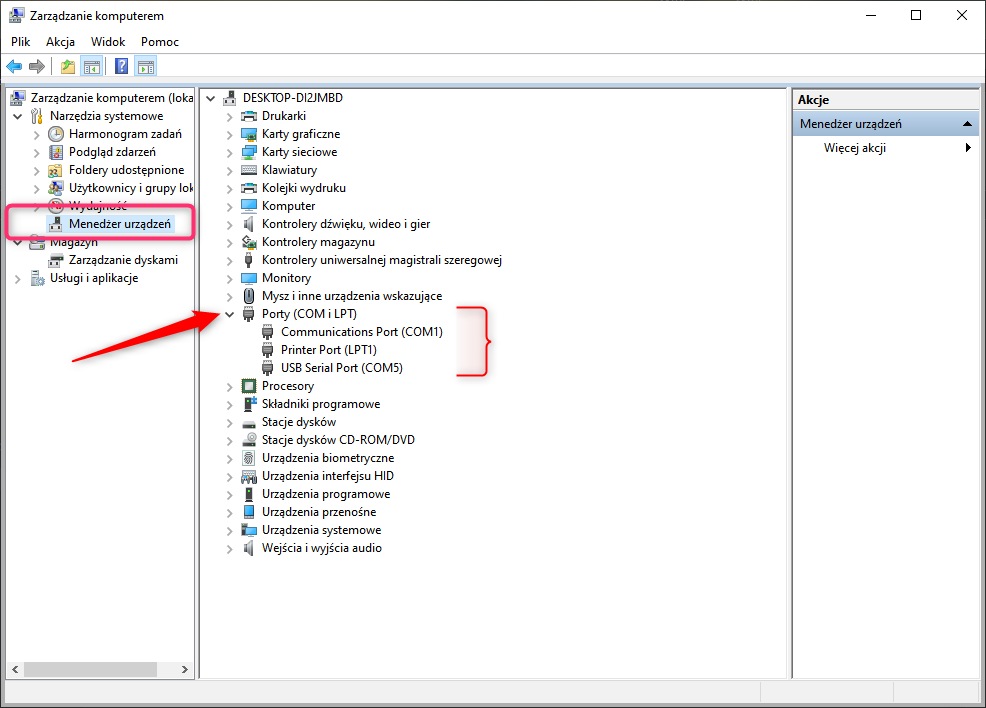
Find the PORTS (COM and LPT) branch. When expanded, we see the available COM ports, e.g.:

At this point, we'll see all COM ports active in the system. There might be quite a few entries here, especially if the computer has Bluetooth support. To find the COM port for your USB/RS232 device, the easiest way is:
- Note the current port numbers
- Plug in your device
- A new entry will appear on the list shortly—remember the COM number for that device.
If a new entry doesn't appear on the list after plugging in the COM/USB converter, you likely don't have the drivers installed. That's a topic for another blog post; for now, just a link to the drivers used by Sectro converters: FTDI VCP Drivers - Virtual COM Port .