


RS232 COM ports in windows systems
COM Ports in Windows Systems
Often in Windows systems, when we have multiple COM ports—whether hardware or virtual—it's hard to figure out which of our devices corresponds to which port. text
Programs that communicate with hardware via COM usually don't automatically detect which COM port the device is connected to, so the user must specify the port number association (e.g., COM3, COM6, etc.) with the device on first launch.
To check the COM port numbers available in the system, launch Device Manager by right-clicking the My Computer icon, then selecting Manage and Device Manager.
You can also directly run the command devmgmt.msc

In Device Manager, we see a tree structure of devices in the computer. 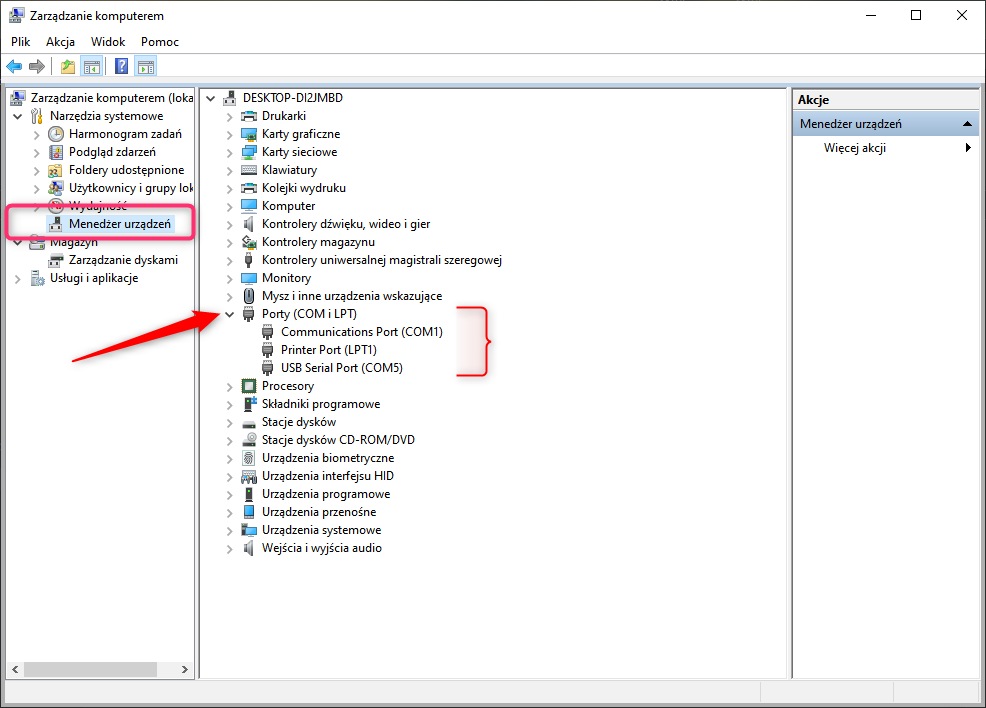
Find the PORTS (COM and LPT) branch. When expanded, we see the available COM ports, e.g.:

At this point, we'll see all COM ports active in the system. There might be quite a few entries here, especially if the computer has Bluetooth support. To find the COM port for your USB/RS232 device, the easiest way is:
- Note the current port numbers
- Plug in your device
- A new entry will appear on the list shortly—remember the COM number for that device.
If a new entry doesn't appear on the list after plugging in the COM/USB converter, you likely don't have the drivers installed. That's a topic for another blog post; for now, just a link to the drivers used by Sectro converters: FTDI VCP Drivers - Virtual COM Port .